



Inside OVN Traffic Flow & Troubleshooting in OpenStack - a Comprehensive Guide
In our previous article about Open vSwitch (OVS), we explored how OVS became a cornerstone of modern data centers and software-defined networking (SDN). As we discussed, OVS provides the foundation for virtual switching inside hypervisors, connecting virtual machines (VMs) and containers through programmable, high-performance datapaths.
However, as virtualization and cloud environments like OpenStack grew, managing OVS at a large scale became increasingly complex. Each hypervisor node required configuration via agents or scripts, and maintaining consistency across distributed environments posed operational challenges.
That’s where Open Virtual Network (OVN) steps in.
We recently had the opportunity to dive deeper into this topic at the recent OpenInfra Summit in France, where our team member and Cloud Architect Vadim Ponomarev delivered a talk on OVN and its role in modern cloud networking.
You can find the presentation slides below — and if you’d like to watch the full session, the recording is available here.
OVN extends OVS by introducing a declarative, centralized control plane for managing virtual networks, routers, and security policies at scale. Instead of manually configuring flows or relying on per-node agents, OVN abstracts these elements into logical constructs — switches, routers, ports, and NATs — all synchronized automatically through databases and daemons.
In this article, we take a deep dive into OVN Traffic Flow & Troubleshooting in OpenStack. We’ll show you how OVN works under the hood, how Neutron resources map to OVN components, and how to troubleshoot common issues in real-world OpenStack environments.
Quick Comparison: Neutron ML2/OVS vs. ML2/OVN
OpenStack Neutron used to rely on ML2/OVS (Open vSwitch) for virtual networking in older releases of OpenStack. ML2/OVN (Open Virtual Network) is a newer, more efficient, and scalable alternative that replaces many old agents and message queues with a built-in distributed control plane.
In the table below we highlight the main differences between ML2/OVS and ML2/OVN and the key benefits of using OVN.
| ML2/OVS | ML2/OVN | Advantages of OVN |
|---|---|---|
|
Communication via Rabbit MQ |
Communication via OVSDB Protocol + Events |
Eliminates RabbitMQ dependency, reducing complexity and improving scalability. |
|
L3 agents running on network nodes and compute (optional DVR) |
OVN Logical routers + Distributed Floating IPs (optional) |
Native distributed routing for higher performance and lower operational overhead. |
|
HA Routers are optional (VRRP) |
Native HA Routers (BFD) |
Built-in redundancy with faster failover and simpler configuration. |
|
DHCP agents |
OpenFlow + native DHCP |
Removes standalone DHCP agents, simplifying management and improving reliability. |
|
Metadata agents |
Agents running on compute nodes |
Distributed metadata service reduces single points of failure and increases resiliency. |
|
BGP Dynamic Routing |
OVN BGP agent |
Seamless integration with OVN control plane for easier setup and better performance |
|
L2 gateway agent |
OVN VTEP gateway |
Direct integration with physical network gateways (VTEP) for smoother hybrid connectivity. |
OVN essentially replaces Neutron’s agents with a database-driven, event-based control plane, while still using OVS for data forwarding. This makes it more robust, consistent, and scalable for large deployments. OVS’s scalability was often limited by agent overhead, while OVN is highly scalable and agentless out of the box.
OVN Architecture Overview
The diagram below illustrates how OVN integrates with OpenStack Neutron to deliver a fully distributed and scalable networking architecture.

At the top of the diagram, you can see the control plane, which consists of Neutron, the ML2/OVN Mechanism Driver, and the two main components, which are the OVN Northbound and Southbound databases.
The data plane is shown below, divided into three types of nodes, the Controller node, the Gateway node, and the Compute node.
- OpenStack Neutron interacts with the Northbound (control) plane through the ML2/OVN Mechanism Driver. This layer handles the translation of high-level OpenStack SDN objects (networks, routers, ports, subnets, etc.) into corresponding OVN logical entities. The configuration is stored in the OVN Northbound Database (NBDB), which represents the desired logical network state.
- The Southbound (data) plane translates this logical intent into the actual forwarding rules. Through the ovn-northd daemon, configurations from the NBDB are converted into lower-level flow instructions in the OVN Southbound Database (SBDB), which are then consumed by the ovn-controller processes running on each node. These controllers program the local Open vSwitch (OVS) instances — setting up tunnels, bridges, and OpenFlow rules to realize the network topology in real time.
OpenFlow itself is the protocol OVS uses to define how packets should be handled — it installs match-action rules in the switch, telling it which traffic to forward where, which to drop, or modify. OVN automatically generates and manages these low level OpenFlow rules according to configuration and entities created in Neutron.
Each compute and gateway node runs its own OVSDB server and ovn-controller, ensuring that local networking (datapath) continues even if the central control plane is temporarily unavailable. Under the hood, OVS still uses OpenFlow to manage traffic, but all configuration is now automatically driven by OVN databases rather than by individual Neutron agents.
Depending on the deployment mode, gateway nodes can operate in two modes:
- North–South mode, handling external routing, NAT, and floating IPs, connecting tenant networks to the outside world.
- East–West mode, focusing on distributed internal traffic between VMs across compute nodes.
In a smaller or hyperconverged setups, both modes can run on the same node, combining gateway and compute functionality. Or, in case of OpenStack control plane nodes running OpenStack APIs can also act as gateway nodes.
Finally, the overlay network (typically VXLAN) interconnects OVS bridges (br-int, br-tun, br-ex) across cluster nodes, providing isolation for the tenant traffic. The OVN metadata agent replaces traditional Neutron L3, metadata and DHCP agents, simplifying operations while maintaining compatibility with OpenStack’s REST API.
When troubleshooting OVN, it’s crucial to understand what happens under the hood after a Neutron API call is made — from updates in the Northbound DB, to their translation in the Southbound DB, to the actual OpenFlow rules applied in OVS. This visibility is key to diagnosing synchronization or flow programming issues.
Understanding Neutron to OVN Mapping
When debugging issues in OVN, it’s essential to understand what happens under the hood after executing OpenStack CLI commands. This slide illustrates how a Neutron network maps to an OVN Logical Switch.

On the left, we see the output of openstack network show, displaying key attributes like is_vlan_transparent, revision_number, and the network UUID. On the right, the corresponding ovn-nbctl find Logical_Switch command shows how these Neutron fields appear in OVN, particularly under the external_ids and other_config sections.
The highlighted fields show that values such as revision_number and VLAN transparency are carried over from Neutron into OVN — helping to verify whether configuration data has been properly synchronized.
When troubleshooting, always check the external_ids for each OVN resource — these contain copies of Neutron database values, making it easier to determine if a configuration has propagated correctly or if there’s a mismatch between Neutron and OVN. This is crucial for narrowing down the problem.
Neutron Network DNS → OVN DNS
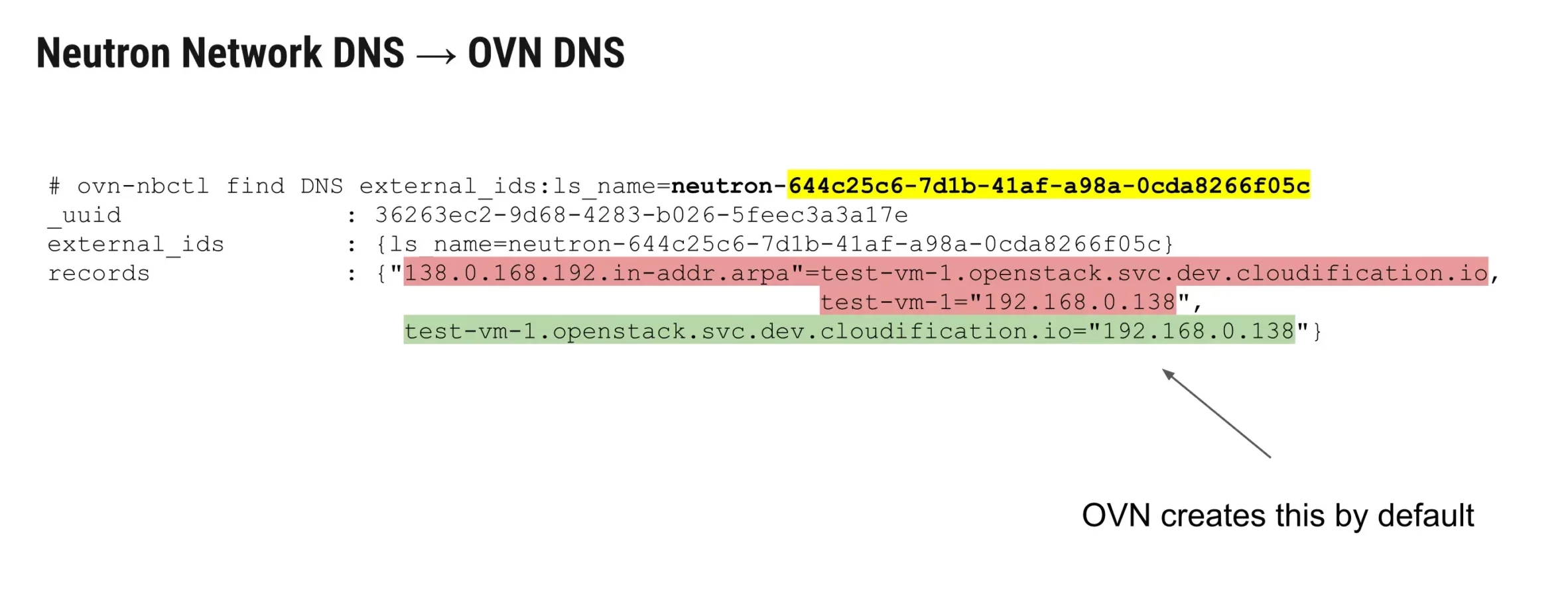
When you create a private network in OpenStack, OVN automatically configures the DNS records for virtual ports on that network. This includes both PTR (reverse lookup) records and forward DNS entries (A/AAAA) for the virtual machines connected to the network.
In this example output below, the private network contains one instance — test-vm-1. OVN automatically creates the corresponding DNS records inside its database, linking the VM’s hostname (test-vm-1) and domain (test-vm-1.openstack.svc.dev.cloudification.io) to its internal IP address (192.168.0.138).
These records are used for internal name resolution — meaning that if another VM on the same private network tries to resolve test-vm-1, the request is handled entirely within OVN (and not forwarded outside the private network).
If there are issues with internal DNS resolution, you should inspect the DNS table in OVN using the command:
ovn-nbctl find DNS external_ids:ls_name=neutron-<NETWORK_UUID>This should show if the DNS records were automatically generated by OVN for the corresponding Neutron network.
Neutron Network Ports → OVN Logical Switch Ports
The output below demonstrates how Neutron ports are mapped to OVN logical switch ports, and how different port types represent specific networking functions inside the OVN architecture.
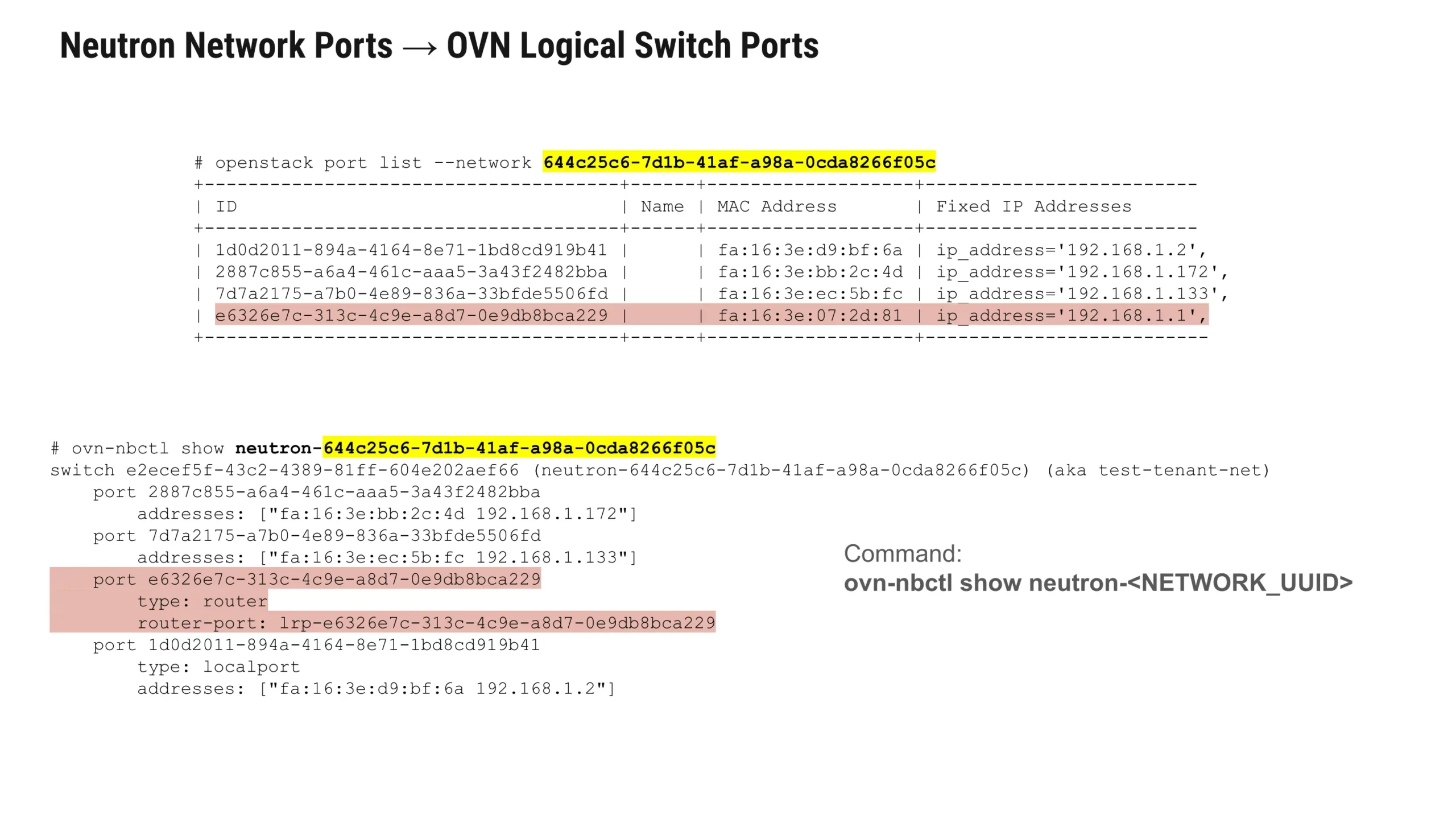
When you run CLI command:
openstack port list --network <NETWORK_UUID>you can see all the Neutron ports that belong to a particular network — each associated with a MAC address and an IP address.
In the example above, we have several ports attached to the same tenant network (test-tenant-net). When we inspect the corresponding OVN logical switch using OVN CLI:
ovn-nbctl show neutron-<NETWORK_UUID>we can see that each Neutron port has a direct match in OVN, including its MAC and IP address. OVN also defines a type for each port, which determines how the port functions within the network.
Port Types in OVN
- Empty type (“”) → Regular compute ports used for virtual machines or containers. These are the most common.
- router → Connects the logical switch to a logical router. This represents the router interface on the network.
- localnet → Used when connecting to a provider network. These ports map directly to a physical interface (e.g., br-ex) on the host.
- localport → Special dummy interfaces that exist on every node in the cluster. These are typically used by OVN for internal services such as the metadata service that provides instance configuration data.
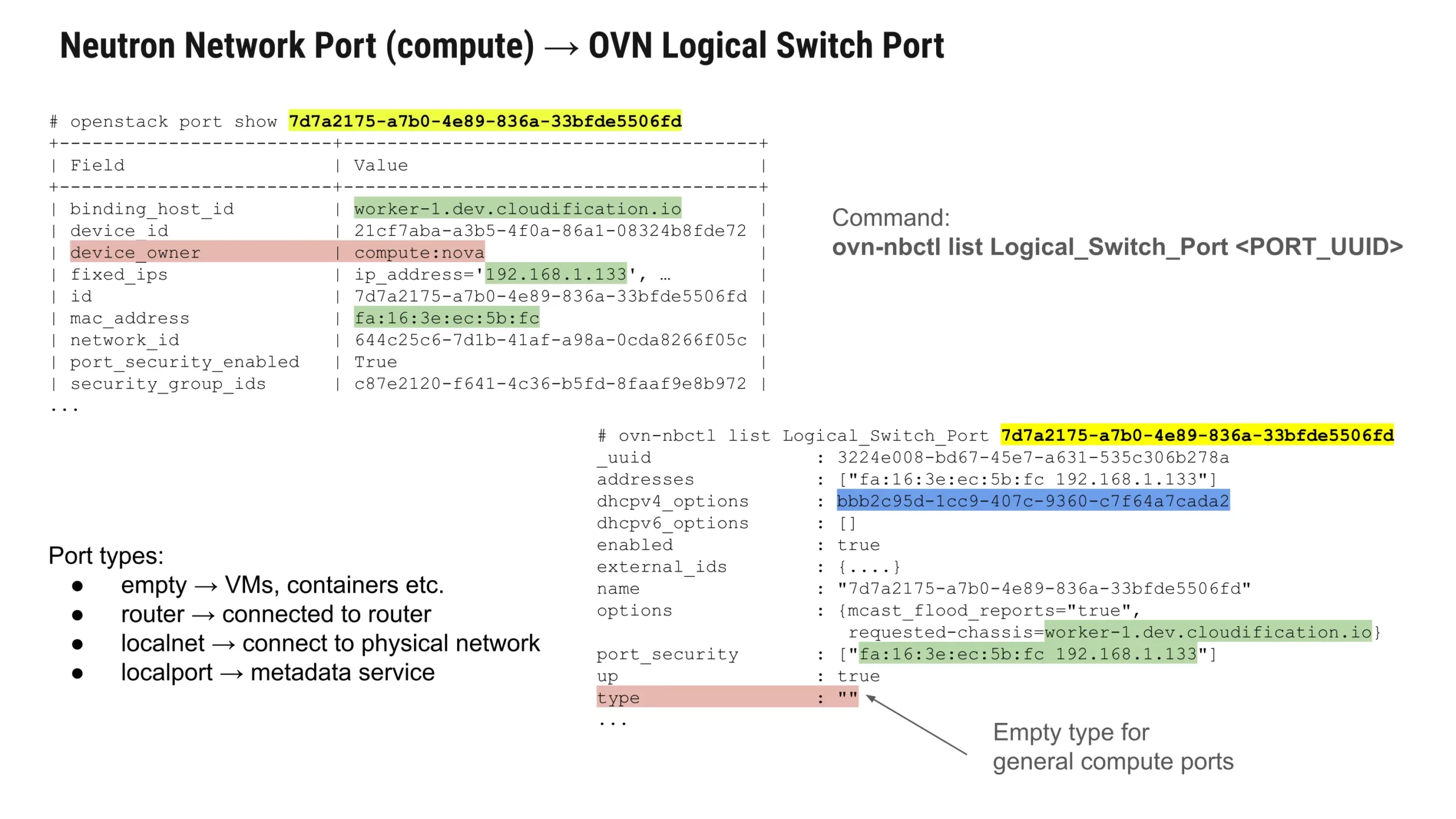
In the example output, the port 7d7a2175-a7b0-4e89-836a-33bfde5506fd is a compute port, mapped to a VM running on worker-1.dev.cloudification.io. The ovn-nbctl list Logical_Switch_Port command confirms this, showing that the port type is empty, with its MAC and IP address, DHCP options, and chassis placement (requested-chassis=worker-1.dev.cloudification.io).
This mapping between Neutron and OVN is essential for debugging — since almost all Neutron port data is mirrored into OVN. By inspecting OVN, you can confirm whether configuration changes from Neutron have been successfully applied to the underlying OVN database.
Neutron Subnet DHCP → OVN DHCP Options

In Neutron, each subnet can define DHCP-related parameters such as allocation pools, DNS servers, static routes, and gateways. When using the OVN ML2 mechanism driver, these settings are automatically translated into OVN’s internal DHCP_Options table.
In the example shown, the Neutron subnet defines:
- A CIDR of 192.168.0.0/24
- Gateway IP 192.168.0.1
- DNS server 8.8.8.8
- Custom host routes pointing to 192.168.10.0/24 via 192.168.0.10
You can view how these settings are represented in OVN with the ovn-nbctl CLI command:
ovn-nbctl find DHCP_Options external_ids:subnet_id="<SUBNET_UUID>"This returns an entry like:
cidr  : "192.168.0.0/24"
options : {
   classless_static_route="{169.254.169.254/32,192.168.0.100,
                            192.168.10.0/24,192.168.0.10,
                            0.0.0.0/0,192.168.0.1}",
   dns_server="{8.8.8.8}",
   domain_name="\"openstack.svc.dev.cloudification.io\"",
   lease_time="43200",
   mtu="8900",
   router="192.168.0.1",
   server_id="192.168.0.1",
   server_mac="fa:16:3e:73:78:ee"
}
This mapping illustrates how all Neutron subnet parameters — including DNS, MTU, and static routes — are stored as DHCP options in OVN. The classless_static_route field is particularly notable: while it may look cryptic, it encodes the same host routes you defined in Neutron, just using OVN’s internal comma-separated format. The 169.254.169.254/32 is the IP from which each VM can fetch its metadata.
How DHCP Works in OVN
Although DHCP responses appear to come from the logical router (192.168.0.1 in this example), they are actually generated locally by the OVN controller running on the compute node where the VM resides. This local DHCP server function is implemented using OpenFlow rules in Open vSwitch (OVS), ensuring distributed handling of DHCP requests without centralized bottlenecks.
When a virtual machine sends a DHCP request:
- The request stays local to the compute node.
- The OVN controller on that node uses the DHCP Options data to generate a reply.
- The response is then sent to the VM — masquerading as if it came from the router IP.
Such design allows DHCP to work efficiently and reliably across distributed environments, even when no centralized DHCP service is present. Previously, with ML2/OVS the DHCP was handled by a Neutron DHCP agent with dnsmasq daemon.
For debugging DHCP-related issues in OVN, you can run:
ovn-nbctl find DHCP_Options
ovn-sbctl find logical_flow
And check:
external_ids:stage-name=ls_in_dhcp_optionsto trace how these DHCP options are applied and propagated at the logical flow level.
Neutron Router → OVN Logical Router
When it comes to virtual routing, things get a bit more complex in OVN compared to previous Neutron-based implementations. The key idea is that OVN reuses the same logical structures for different networking components — routers, ports, and gateways — which can make debugging and mapping a little tricky at a first glance.
In the example below, we start by examining a Neutron router named test-router.
Using ovn-nbctl show neutron-<ROUTER_UUID>, we can see that this router has two logical ports — one connected to the internal tenant network (192.168.1.1/24) and another facing the external or provider network (10.40.196.189/24).
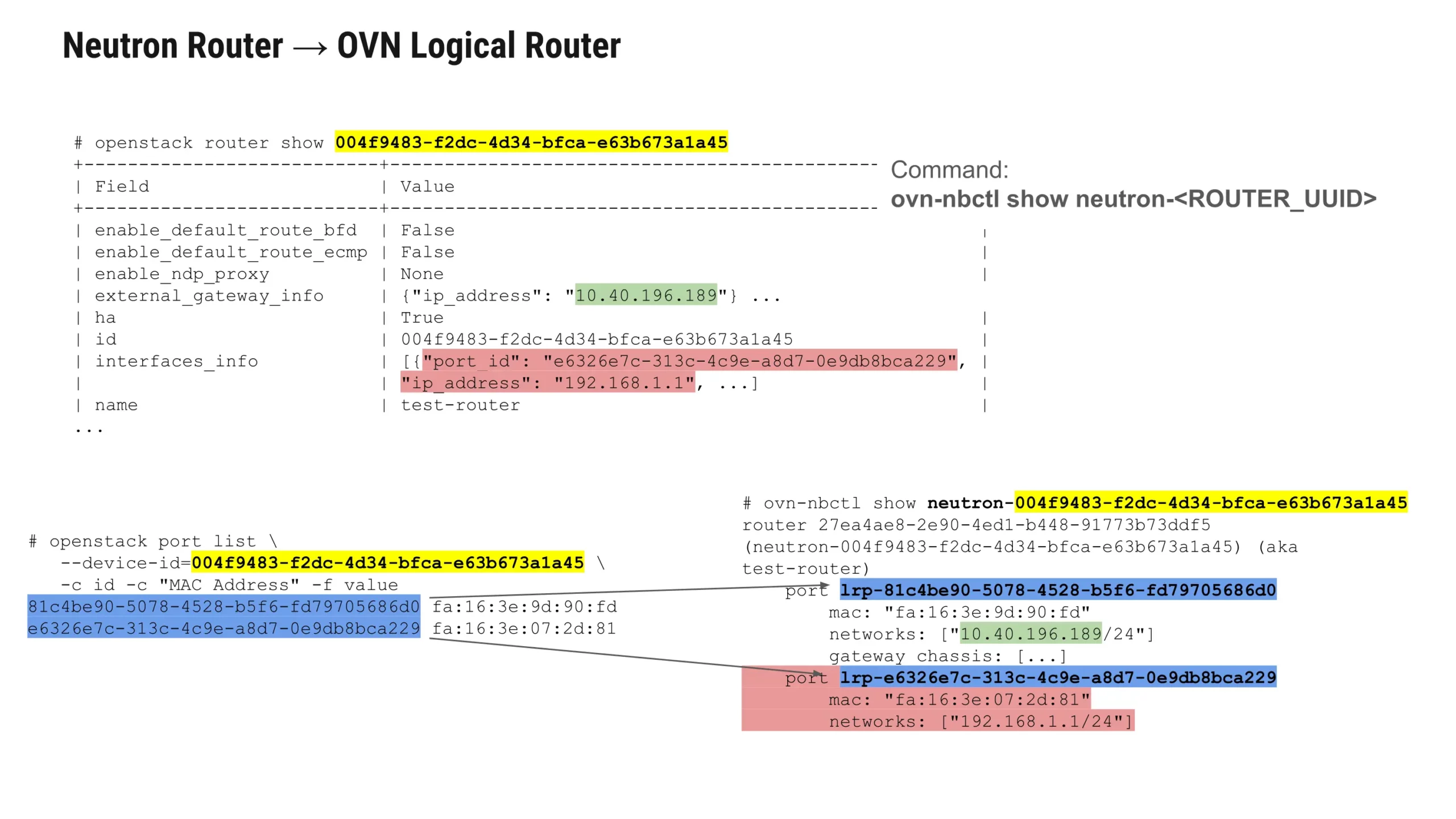
Both ports are represented in the same table in OVN and maintain consistent naming conventions between Neutron and OVN, which makes tracing configuration easier. The main difference lies in the gateway chassis — public-facing router ports will typically include these entries, while internal interfaces will not.
Internal Router Port
This interface represents the internal connection between the router and the tenant network. There are no gateway chassis defined here, as traffic on this side remains within the private network. These internal ports are usually simple and directly correspond to what’s configured in Neutron.
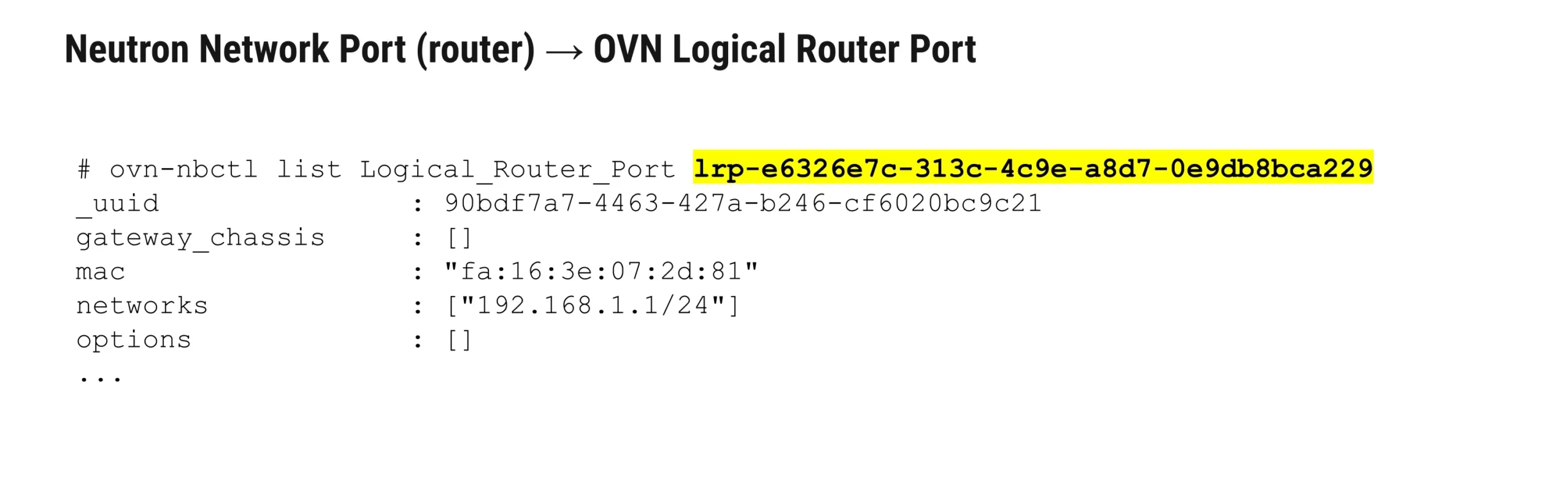
External Router Port and Gateway Chassis Mapping
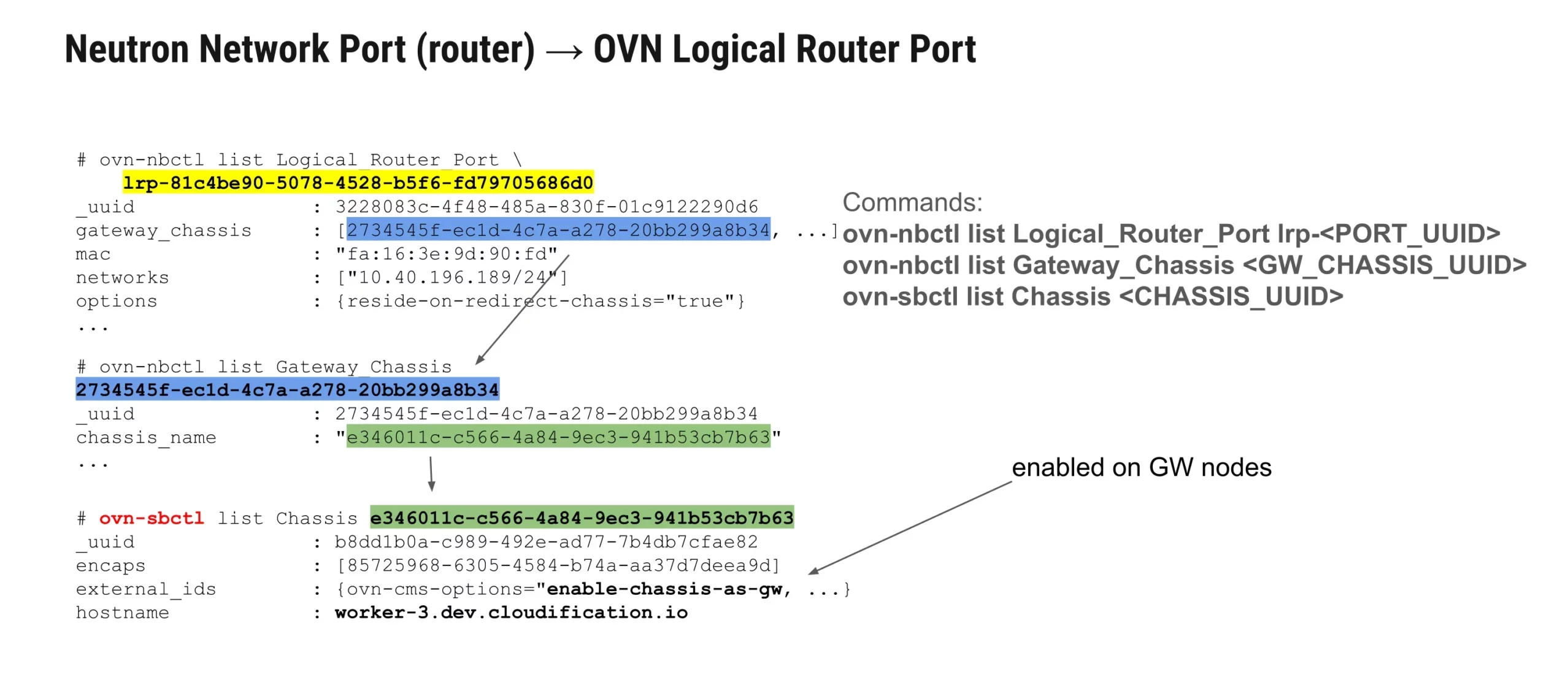
Now, looking at the public-facing router port (lrp-81c4be90-5078-4528-b5f6-fd79705686d0), things are getting more interesting. This port has gateway chassis entries — a list of physical nodes (hypervisors or gateway nodes) where OVN deploys high-availability (HA) instances of the logical router.
By using ovn-nbctl and ovn-sbctl:
ovn-nbctl list Logical_Router_Port <PORT_UUID>
ovn-nbctl list Gateway_Chassis <GW_CHASSIS_UUID>
ovn-sbctl list Chassis <CHASSIS_UUID>
we can trace exactly where each logical router replica is running. This shows the link between the logical router configuration in the northbound database and its physical realization in the southbound database, where you can see the hostname (e.g., worker-3.dev.cloudification.io) of the active node handling the traffic.
It’s worth noting that while Neutron’s old implementation relied on Linux network namespaces for HA routers, OVN does this natively through its distributed architecture. A single virtual router may have several logical replicas (typically 3 to 5) deployed across different nodes.
Determining the Active Gateway
Finally, to determine which node is actively handling external traffic, you can use:
ovn-nbctl lrp-get-gateway-chassis <PORT_UUID>
ovn-sbctl get Chassis <CHASSIS_UUID> hostname
This ovn-nbctl command lists all available gateway chassis along with their priorities. The chassis with the highest priority value is the active one currently processing the north-south traffic (external/provider traffic). In the example shown, the active chassis is master-1.dev.cloudification.io.
If this node goes down, OVN automatically promotes the next highest-priority chassis, maintaining seamless HA operation. Also, when inspecting the router port configuration, the option reside-on-redirect-chassis=true indicates that this port is part of an HA setup — a useful flag for debugging routing issues and verifying high availability configuration.

TL:DR
- Internal ports (no gateway chassis): handle traffic inside tenant networks.
- External ports (with gateway chassis): connect to provider networks and participate in HA routing.
- HA and traffic routing: managed natively by OVN using distributed logical routers and priority-based chassis assignments.
This layered structure — connecting Neutron’s logical definitions with OVN’s distributed implementation — provides both flexibility and resilience, but requires familiarity with how to interpret ovn-nbctl and ovn-sbctl outputs when debugging.
HA routers and OVN Gateway Agents
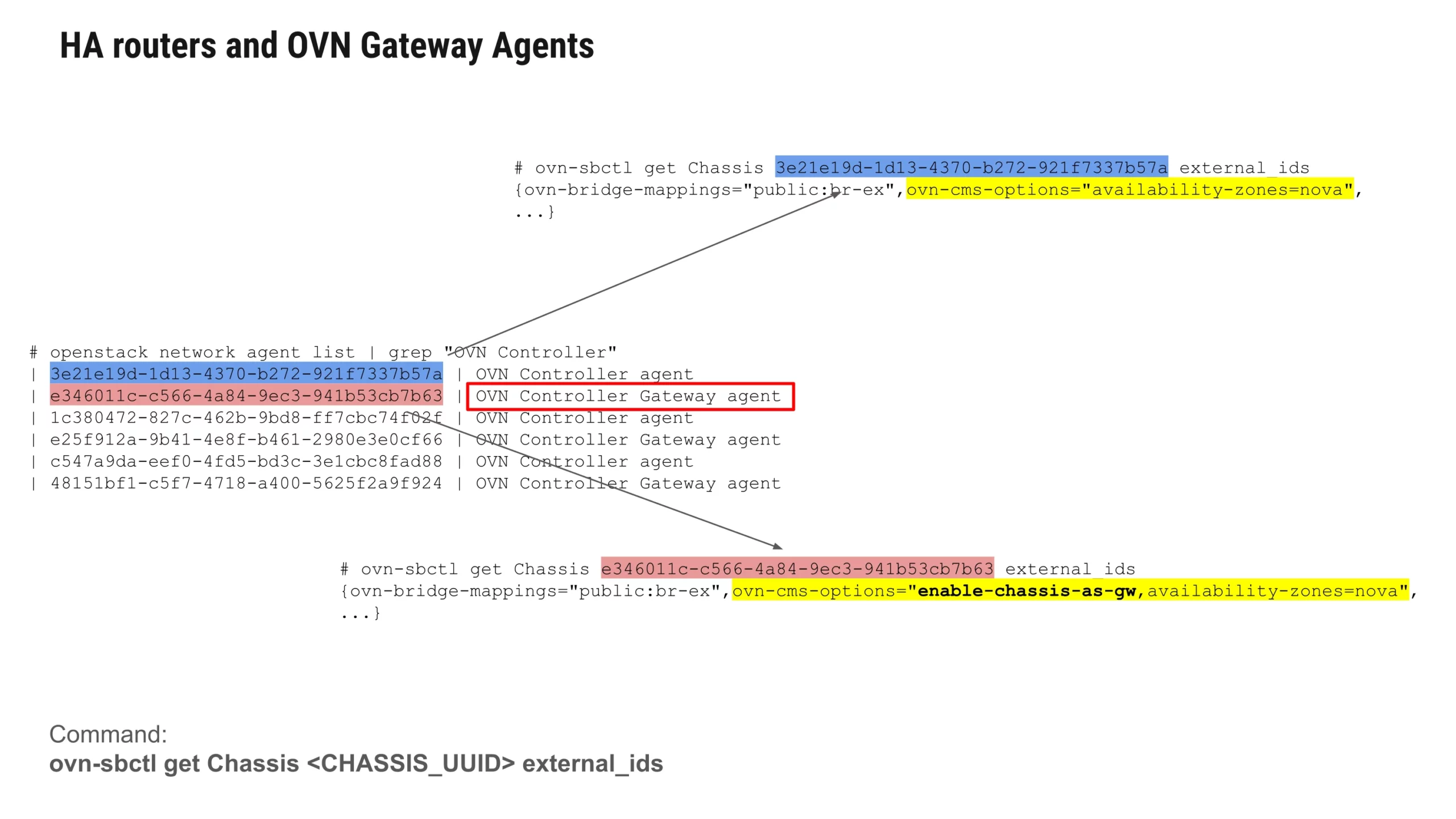
In OVN-based OpenStack deployments, each node runs an OVN controller process, but not all controllers serve the same purpose. As shown in the example output below, OpenStack reports two types of agents:
- OVN Controller agent
- OVN Controller Gateway agent
These correspond to two different chassis roles within OVN.
$ openstack network agent list | grep "OVN Controller"
| 3e21e19d-1d13-4370-b272-921f7337b57a | OVN Controller agent
| e346011c-c566-4a84-9ec3-941b53cb7b63 | OVN Controller Gateway agent
| 1c380472-827c-462b-9bd8-ff7cbc74f02f | OVN Controller agent
| e25f912a-9b41-4e8f-b461-2980e3e0cf66 | OVN Controller Gateway agent
| c547a9da-eef0-4fd5-bd3c-3e1cbc8fad88 | OVN Controller agent
| 48151bf1-c5f7-4718-a400-5625f2a9f924 | OVN Controller Gateway agent
To understand the difference, you can inspect each chassis through OVN Southbound CLI:
$ ovn-sbctl get Chassis 3e21e19d-1d13-4370-b272-921f7337b57a external_ids
{ovn-bridge-mappings="public:br-ex",
 ovn-cms-options="availability-zones=nova", ...}

$ ovn-sbctl get Chassis e346011c-c566-4a84-9ec3-941b53cb7b63 external_ids
{ovn-bridge-mappings="public:br-ex",
 ovn-cms-options="enable-chassis-as-gw,availability-zones=nova", ...}
The key distinction lies in the ovn-cms-options field:
- Standard OVN Controller
Acts as the local configurator for OVS on compute nodes. It programs flows, handles metadata services, and processes updates from the OVN Southbound database. These controllers do not participate in routing external traffic. - OVN Gateway Controller
Adds the enable-chassis-as-gw option, designating the node as a gateway capable of handling north–south traffic. These chassis are responsible for:- SNAT/DNAT and floating IPs
- External network connectivity
- High-availability (HA) router traffic
- Providing uplink to physical networks via bridges such as br-ex
- SNAT/DNAT and floating IPs
In other words, every node runs an OVN controller, but only selected chassis act as gateway nodes. These gateway controllers “absorb” the traffic of HA routers and manage access to public networks, while regular controllers focus on local configuration and east–west VM networking.
This separation of roles is an important part of OVN’s distributed design: compute nodes handle local datapath configuration, while gateway nodes take care of external connectivity and NAT services.
Floating IP routing in OVN (DVR / non-DVR)
The official OpenStack documentation explains how Floating IP (FIP) routing behaves in OVN, depending on whether the deployment uses Distributed Virtual Routing (DVR) or non-DVR mode. The diagram provides a very clear, visual comparison, and it’s helpful to understand what actually happens when VMs receive Floating IPs and how their traffic flows through the cluster.
Non-Distributed Floating IP (non-DVR)
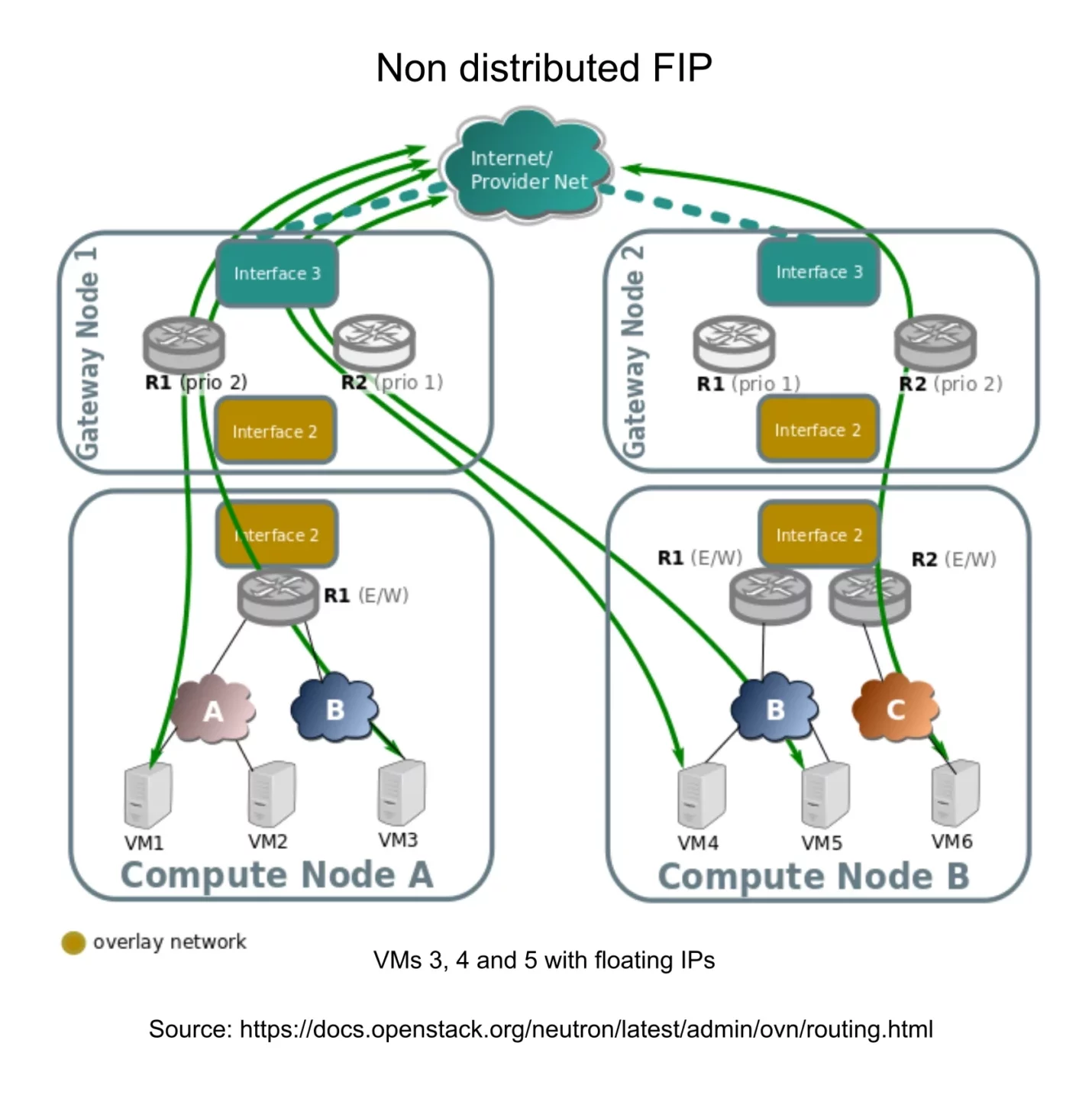
On the image above, we see the non-distributed model.
In this scenario, even though VMs on different compute nodes have Floating IPs, all north-south traffic must pass through a centralized gateway node.
- Each gateway node hosts an HA replica of the logical router (R1, R2), with different priorities.
- VM traffic, regardless of where the VM is located in the cluster, is steered through the active gateway chassis.
- The overlay network (yellow) links the compute nodes to the gateway nodes.
- Even if a VM with a Floating IP sits on Compute Node A or B, the egress and ingress path is always routed through the gateway with the highest priority.
This setup works, but it creates a bottleneck and does not distribute the load across compute nodes.
Distributed Floating IP (DVR)
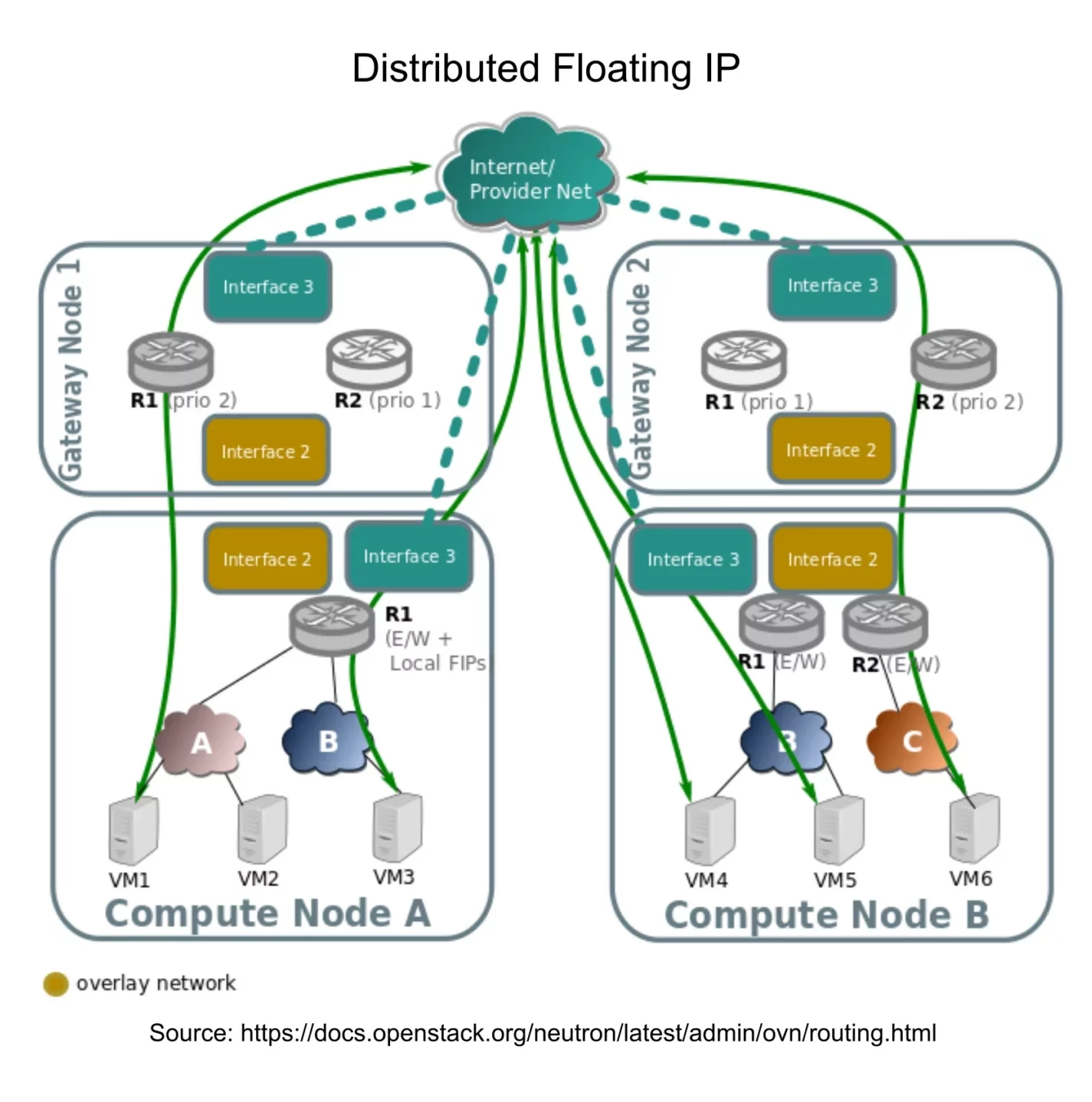
On the image above, we see the distributed router configuration.
Here, Floating IP routing becomes distributed, meaning that each compute node can locally handle north-south traffic for the VMs it hosts.
- Instead of sending all FIP traffic to a central gateway, each compute node takes part in routing.
- Logical router instances (R1 and R2 replicas) run not only on gateway nodes, but also on compute nodes.
- This allows traffic to enter and exit the cluster directly through the compute node where the VM lives.
- The overlay and provider networks are still present, but now they are leveraged much more efficiently.
In the diagram, VM3, VM4, and VM5 all have local FIPs, and you can see that their routing happens on their respective compute nodes, significantly reducing latency and avoiding central congestion.
Why this matters
This distinction is essential when designing or debugging OVN-based OpenStack networking:
- non-DVR = simpler, but centralized and limited
- DVR = more efficient, lower latency, better scaling, but more complex
The image from the documentation does a great job at illustrating these two behaviors side-by-side, and it’s a good reference when analyzing how Floating IP traffic is supposed to behave in your cloud. For our customer OpenStack deployments we always recommend and do the DVR setups.
SNAT and DNAT configurations
The image below illustrates how Neutron NAT rules are translated directly into OVN NAT entries, and how you can inspect them using ovn-nbctl. The mapping between Neutron and OVN is essentially one-to-one, which makes NAT debugging much more straightforward once you know where to look.

In the example on the left, we run:
ovn-nbctl show neutron-<ROUTER_UUID>This displays all NAT entries associated with a specific logical router. You can clearly see two types of records:
- dnat_and_snat — this corresponds to a Floating IP, where both destination and source NAT are applied. In this example, external IP 10.40.196.214 is mapped to the internal fixed IP 192.168.1.133.
- snat — this represents source NAT for the entire internal subnet, typically applied on the router’s external gateway port. Here, the SNAT address 10.40.196.141 is used for all traffic originating from 192.168.1.0/24.
On the right side of the slide, we verify the Floating IP using OpenStack CLI:
openstack floating ip list --floating-ip-address 10.40.196.214This returns us the fixed IP and the corresponding Neutron port. With that port ID, we can then query OVN directly:
ovn-nbctl find NAT logical_port="<PORT_UUID>"This confirms the NAT rule is configured in the OVN: external IP, internal IP, MAC, and the type (dnat_and_snat).
Where this data lives
All NAT rules, whether SNAT or DNAT, end up in the NAT table inside the OVN Northbound database. The only real difference between SNAT and a Floating IP DNAT rule is expressed in two fields:
- the NAT type (snat vs dnat_and_sna), and
- the external_ip value.
From there, OVN uses these entries to program the distributed datapath automatically.
Neutron Security Groups→ OVN Port Groups
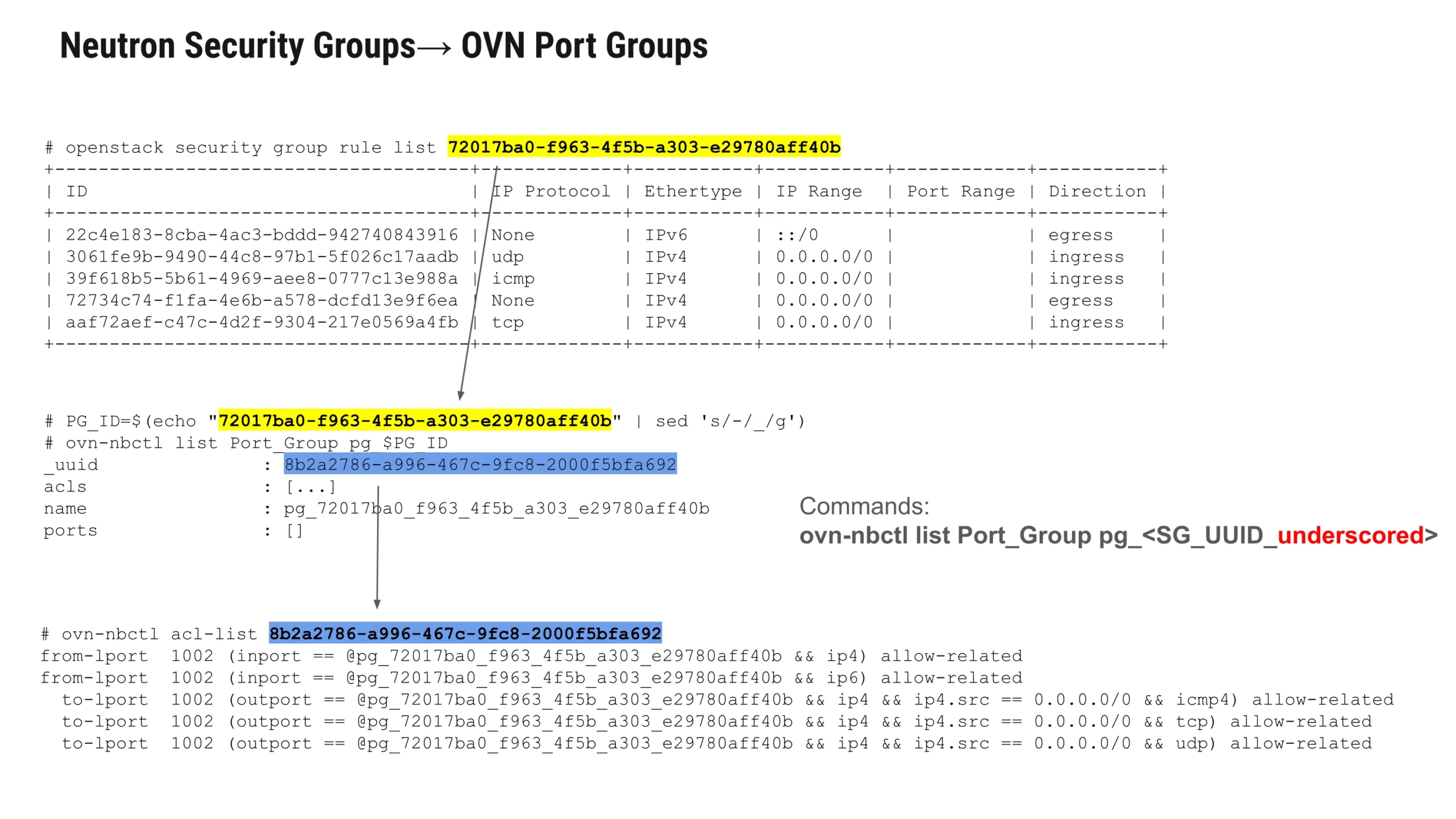
In OVN, Neutron Security Groups are translated into Port Groups, which act as logical containers for ACL rules. When you list a security group in OpenStack, each rule you see (protocol, direction, IP range, etc.) is converted by OVN into a set of ACL entries attached to an automatically created Port Group.
For example, querying a security group such as 72017ba0-f963-4f5b-a303-e29780aff40b and converting its UUID into OVN’s format with underscores allows you to inspect the corresponding Port Group with:
ovn-nbctl list Port_Group pg_<SG_UUID_underscored>
OVN then exposes the associated ACLs through:
ovn-nbctl acl-list <port_group_uuid>
These ACLs represent the exact Neutron rules — translated into OVN’s logical firewall model. You’ll see entries for ingress and egress rules across IPv4/IPv6, along with protocol-specific matches like TCP, ICMP, UDP, etc. OVN binds these rules to the Port Group, and all ports added to that group automatically inherit the correct security-group behavior.
This mapping makes troubleshooting straightforward:
Neutron security groups → OVN Port Groups → ACLs.
By exploring the Port Group and its ACLs, operators can precisely trace how Neutron policies are enforced within OVN and see if there is any misynchronisation.
TROUBLESHOOTING AND KNOWN ISSUES
Chassis Duplicate
Issue
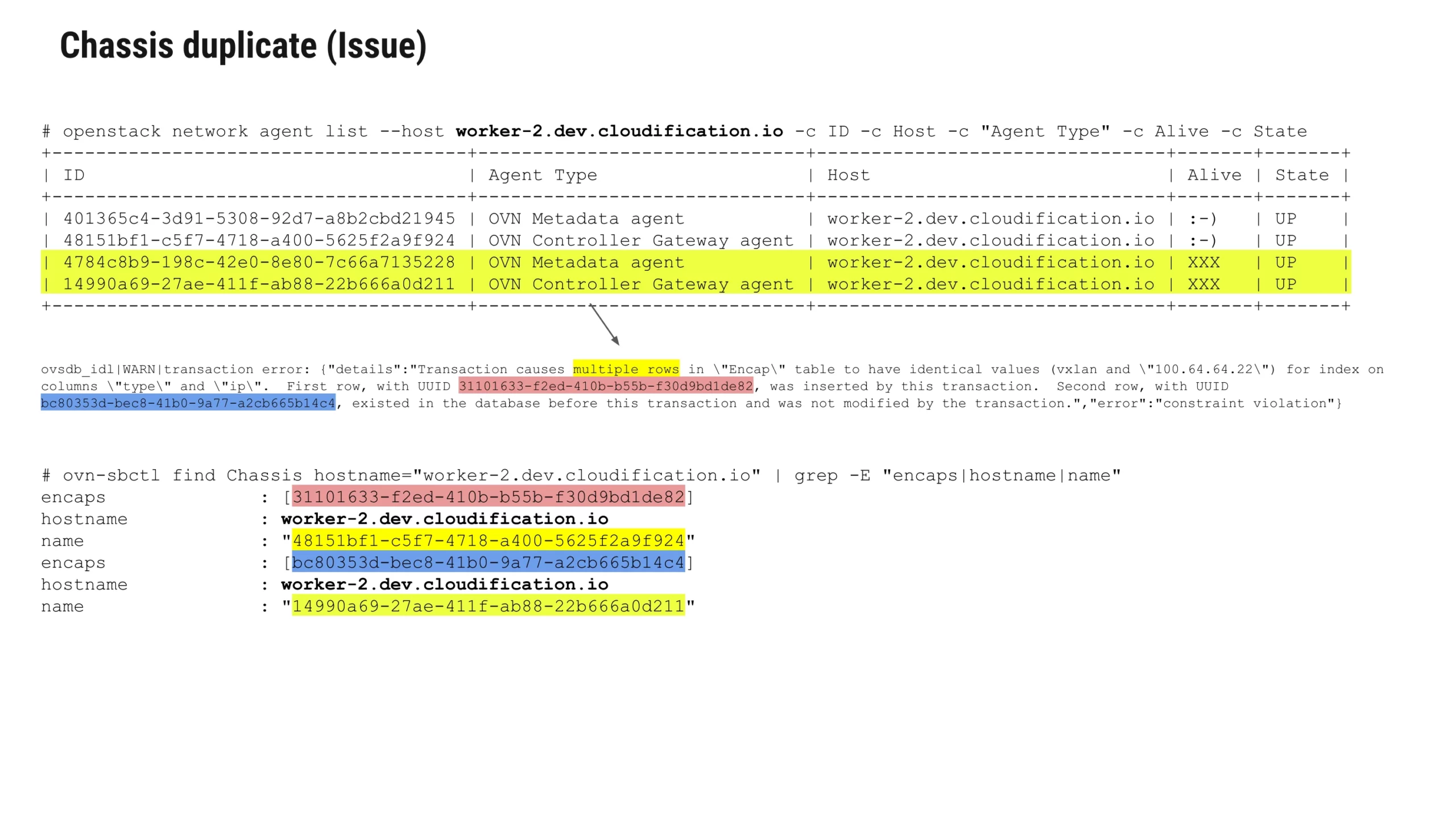
One recurring issue we’ve observed – especially in environments running OpenStack Caracal (version 2024.1) is the appearance of duplicate OVN chassis entries after an ungraceful compute host shutdown. This typically happens when a compute node is powered off abruptly (“power cut”) and then brought back online. When this occurs, the node may register itself again with OVN, creating additional chassis and “encap” entries instead of reusing the existing ones. In Neutron, this issue shows up as duplicate OVN Metadata agents or Controller Gateway agents for the same host:
openstack network agent list --host worker-2.dev.cloudification.ioIn the example on the slide, both agents appear twice for the same hostname. When OVN tries to sync, it triggers a constraint violation:
Transaction causes multiple rows in "Encap" table to have identical valuesThis error occurs because two “Encap” rows share the same tunnel type (vxlan) and IP. OVN cannot accept this, and the corrupted entries remain stuck in both the Chassis and Chassis_Private tables.
The important part. You cannot remove these duplicate agents using:
neutron agent delete <agent_id>At least in the 2024.1 release, Neutron will reject this. We needed a workaround that operates directly on OVN Southbound DB and triggers Neutron to clean its internal cache.
Solution
To properly remove a duplicate chassis, you need to clean up both OVN records and Neutron’s agent cache.
1. Remove the duplicated Chassis and Chassis_Private entries
Use ovn-sbctl to delete both associated database objects:
ovn-sbctl chassis-del <CHASSIS_UUID>
ovn-sbctl destroy Chassis_Private <CHASSIS_UUID>
This removes the visible chassis entry and the corresponding private record holding additional state.
2. Notify Neutron to purge the agent from its cache
Neutron’s OVN ML2 driver stores chassis references in memory.
To force it to refresh, you can trigger an event by setting:
ovn-sbctl set sb-global . external_ids:delete_agent="<CHASSIS_UUID>"The OVN ML2 driver reacts to this key and removes the stale agent from its internal state (Reference from Neutron source code):
neutron/plugins/ml2/drivers/ovn/mech_driver/mech_driver.py#L1389
3. If step 2 does not work: restart all neutron-server instances
In some cases, especially with multiple API servers or older versions, Neutron may not process the event. If the stuck agent remains visible after a few seconds, gracefully restart all neutron-server instances to flush the cache.
Related Bug Reports
These issues are documented across OpenStack and downstream distributions:
MTU and packet fragmentation between private networks
Issue
Another issue we encountered appears when two private networks are connected to the same router, each with different MTU values. In theory, the router should route traffic between these two subnets without problems. However, in practice with OVN, this setup fails if the MTUs differ.
The reason is that OVN historically did not handle packet fragmentation properly for east-west traffic. When a VM on one network sends a packet that exceeds the MTU of the other network, OVN fails to fragment it. As a result, connectivity appears broken even though routing is configured correctly.
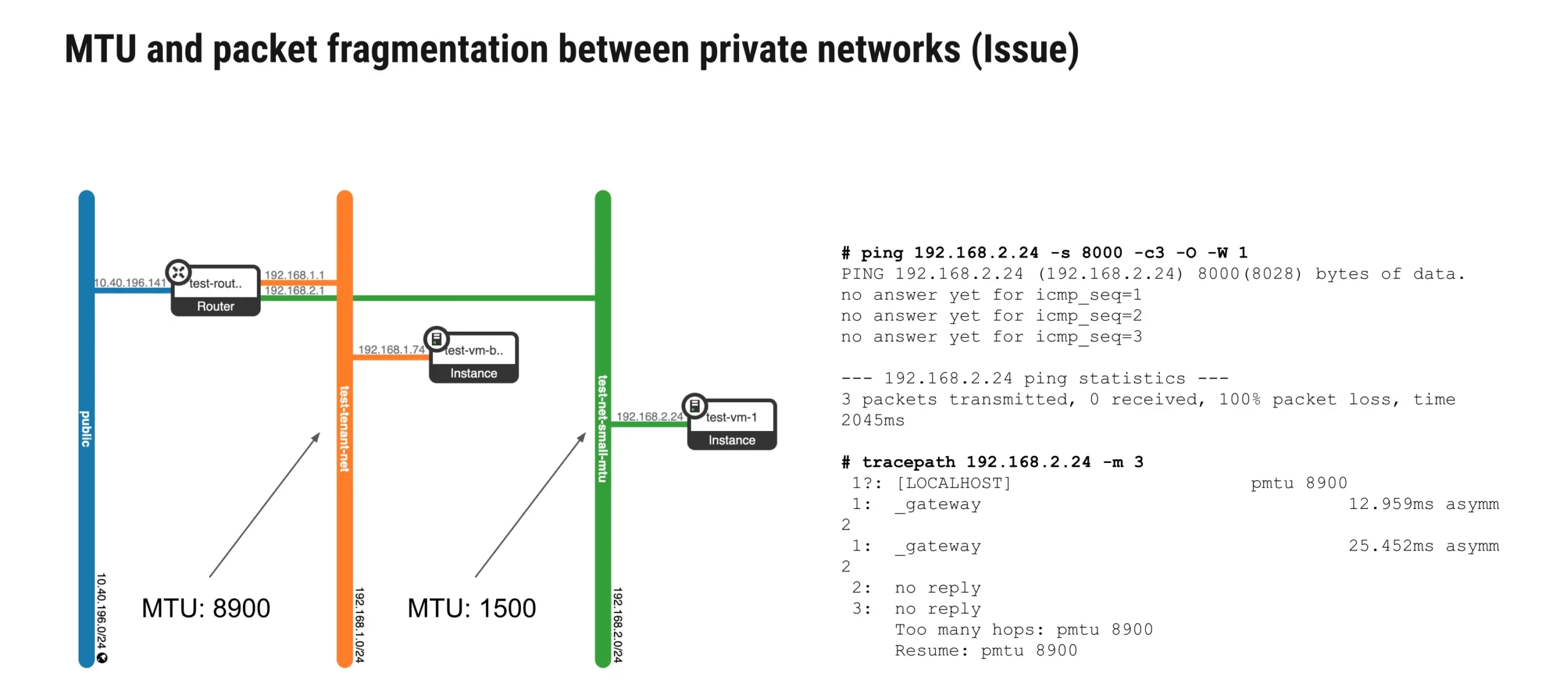
A simple test demonstrates the problem:
ping 192.168.2.24 -s 8000 -c3 -O -W 1All packets are lost, indicating that large packets cannot traverse between the two networks.
A tracepath confirms that PMTU discovery fails:
1?: [LOCALHOST]   pmtu 8900
1: _gateway
2: no reply
3: no reply
Traffic never reaches the destination because PMTU discovery and fragmentation are not handled correctly by OVN in earlier versions. This issue has been acknowledged upstream and is now fixed- but only in more recent OVN releases from September 2024 and newer.
Solution
This problem was resolved upstream with a series of patches that introduce proper Path MTU Discovery (PMTUD) for non-routed (east-west) traffic between VMs running on different hypervisors. The fix makes PMTUD work for traffic crossing logical switch ports on the same logical switch – mirroring behavior already supported for routed traffic.
Patch summary:
northd: Fix pmtud for non routed traffic.
Introduce PMTUD support for e/w traffic between logical switch ports
on different hypervisors.
Reported at:
To benefit from this fix, the environment must run OVN v.24.09, which is included in OpenStack 2024.2 and later. Earlier versions will continue to exhibit MTU mismatches unless manually patched.
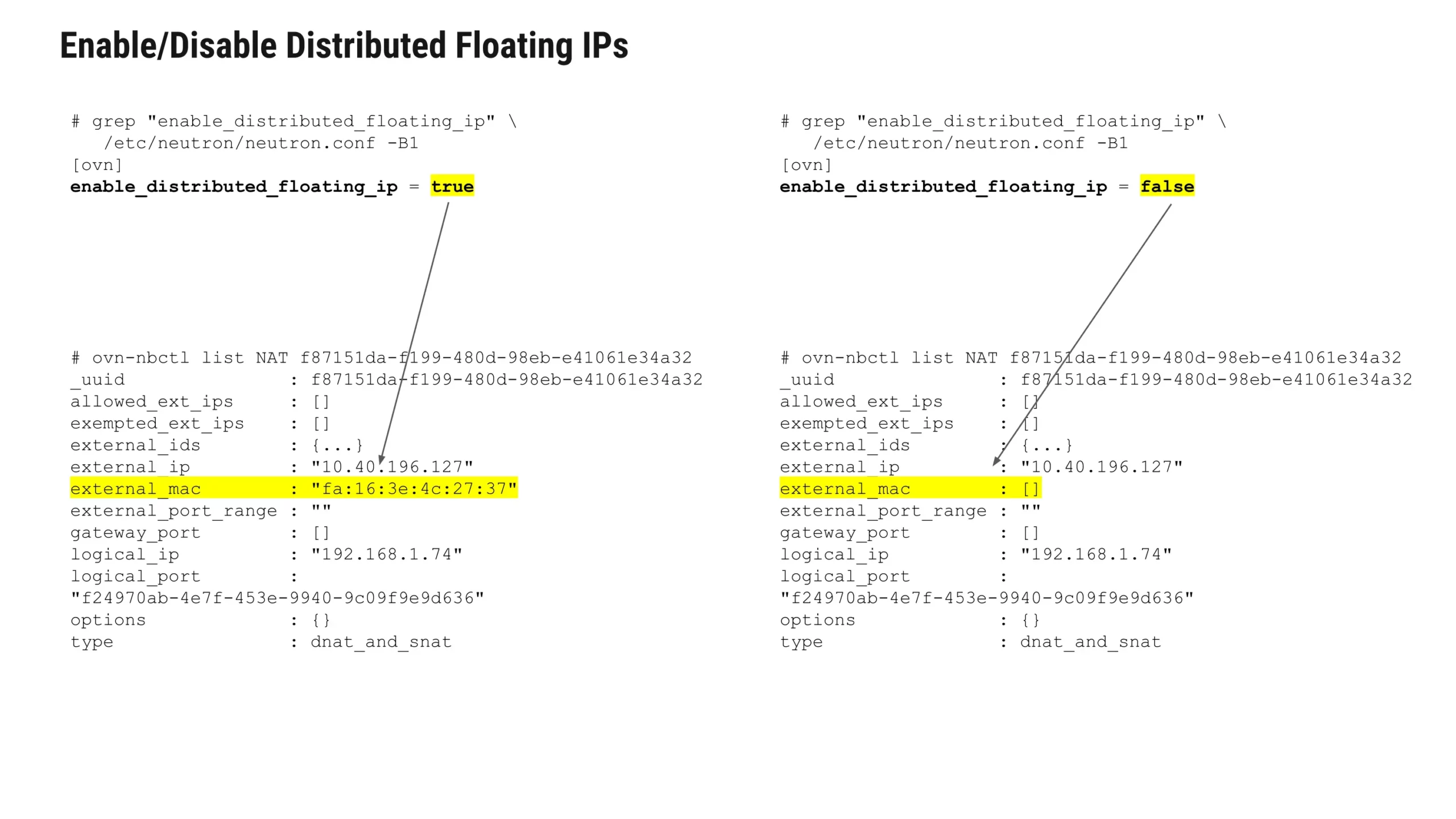
Enable/Disable Distributed Floating IPs (DVR vs. non-DVR)
OVN allows operators to switch between Distributed Virtual Routing (DVR) and centralized (non-DVR) floating IP behavior using a single configuration flag in the Neutron configuration file neutron.conf:
[ovn]
enable_distributed_floating_ip = true   # DVR enabled
or
[ovn]
enable_distributed_floating_ip = false  # DVR disabled
However, while this configuration flag controls the global behavior, existing NAT entries in OVN may not be automatically updated, especially in long-running or production environments where neutron-server cannot be restarted immediately.
How to Identify the Difference in OVN
The key difference between a distributed floating IP (DVR) and a centralized floating IP is found in the NAT table.
Example: DVR enabled
external_mac is present:
external_mac : "fa:16:3e:4c:27:37"
type         : dnat_and_snat
Example: DVR disabled
external_mac is empty:
external_mac : []
type         : dnat_and_snat
This single field determines whether OVN installs the floating IP rules in a distributed manner on each compute node, or centrally on the router gateway.
Switching Between DVR and Non-DVR
Although the global setting applies everywhere, switching modes on an active deployment sometimes requires manual adjustment of existing NAT entries, especially if you want to avoid restarting services.
Two possible approaches:
1. Restart all neutron-server instances
This triggers neutron to re-evaluate NAT entries and update external_mac automatically. However, it may be disruptive in production.
2. Adjust the NAT entry manually (recommended for live systems)
You can directly set or remove the external_mac field in the NAT table:
To switch to DVR (add external_mac):
ovn-nbctl set NAT f87151da-f199-480d-98eb-e41061e34a32 external_mac="fa\:16\:3e\:4c\:27\:37"To switch to non-DVR (clear external_mac):
ovn-nbctl clear NAT f87151da-f199-480d-98eb-e41061e34a32 external_macThis lets you move between DVR and centralized routing without shutting down neutron services.
Wrong device mapping
Another common issue you may encounter in OVN is wrong or inconsistent bridge mappings across compute nodes. This happens when one of the nodes does not have the correct ovn-bridge-mappings configured, even though the others are set correctly.
In this example, neutron refuses to bind a port on worker-2:
INFO ... Refusing to bind port 5e356fc6-bfb1-4698-93bb-c0e4b091dddc on host worker-2.dev.cloudification.io due to the OVN chassis bridge mapping physical networks [] not supporting physical network: publicWhen checking the chassis entries:
hostname: worker-3.dev.cloudification.io
external_ids: {ovn-bridge-mappings="public:br-ex", ...}

hostname: worker-1.dev.cloudification.io
external_ids: {ovn-bridge-mappings="public:br-ex", ...}

hostname: worker-2.dev.cloudification.io
external_ids: {ovn-bridge-mappings=[], ...}
We immediately see that worker-2 is missing the public:br-ex mapping entirely. Because of this, OVN cannot place ports of the public physical network on that node, and VMs scheduled there will fail to spawn with external connectivity.
Why This Happens
As you might know, this is a common problem that also happened in the old Neutron ML2/OVS plugin. It usually occurs when:
- a node was added later
- a configuration file was forgotten
- a deployment tool did not update all hosts
- or a bridge (br-ex) exists physically on some nodes but not on others.
You only notice the issue when a VM is scheduled onto the misconfigured node, making it tricky to debug if you don’t immediately check the chassis mappings.
And just like with the previous plugin, OVN requires consistent bridge mappings on every chassis that should handle external networks.
How to Fix It
Update the bridge mapping on the affected node (network name is public and bridge br-ex in the example below):
ovs-vsctl set Open_vSwitch . external-ids:ovn-bridge-mappings="public:br-ex"
After updating, OVN will automatically re-register the chassis with the correct mapping, and the port binding will succeed.

OVN trace tool – How to Debug Traffic End-to-End
In this example setup, we have a virtual machine connected to a private network, a router, and then a public provider network. When you need to understand how packets move through this chain, or why something isn’t working – the OVN trace tool is one of the most powerful debugging utilities available.
Some people avoid it because the output looks complicated, but once you get used to it, it becomes as natural as reading tcpdump or the Linux tracepath output. It shows you, step by step, how OVN pipelines process your packet, which NAT rules apply, and which logical port it finally exits through.
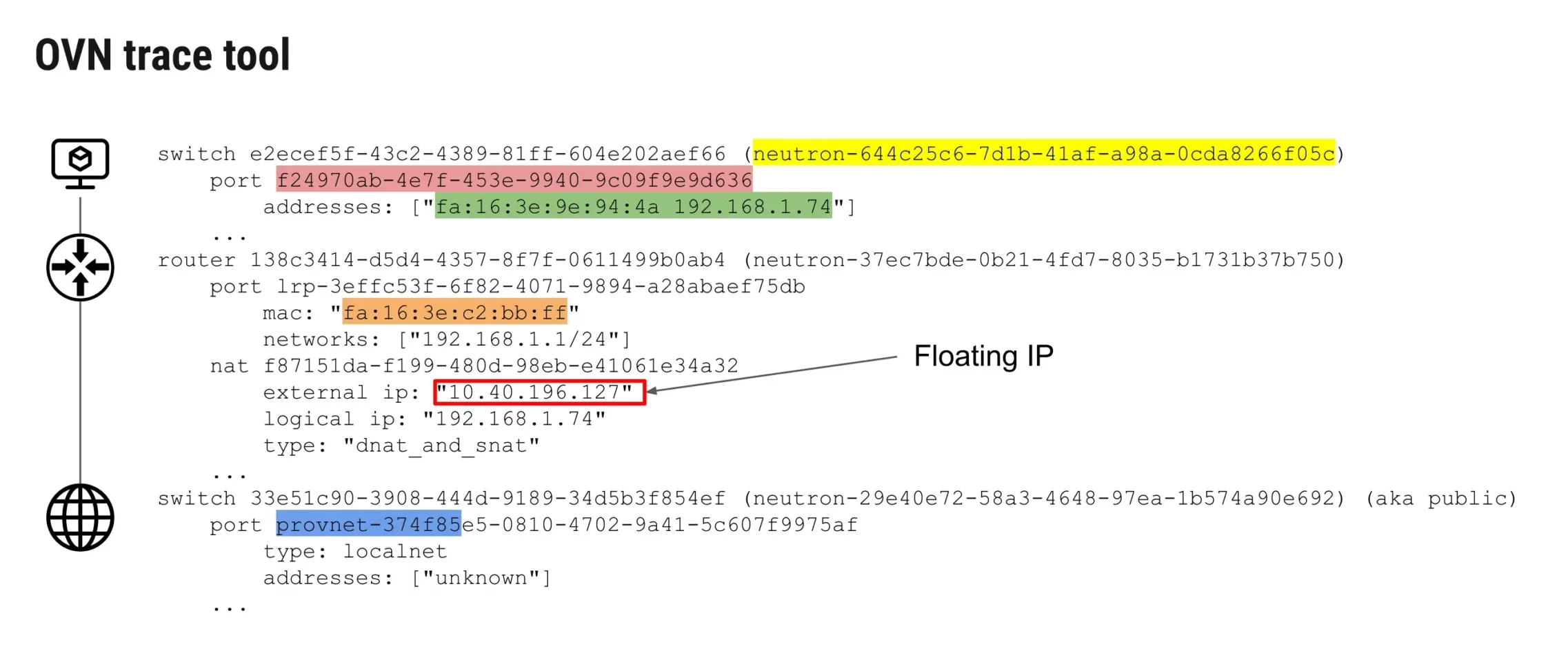
What the Trace Shows
In the example above, we trace unicast TCP traffic originating from a VM on the private network:
- Source port: from VM’s logical port f24970ab…
- Source MAC/IP: fa:16:3e:9e:94:4a / 192.168.1.74
- Destination: public IP 8.8.8.8
- Protocol: TCP, destination port 80
The packet first passes through the logical switch of the private network, then through the router where the dnat_and_snat NAT rule is applied:
logical ip: 192.168.1.74
external ip: 10.40.196.127
type: dnat_and_snat
Finally, the packet is translated and forwarded to the provider network, exiting via the provnet-374f85… port, which is mapped to the physical br-ex.
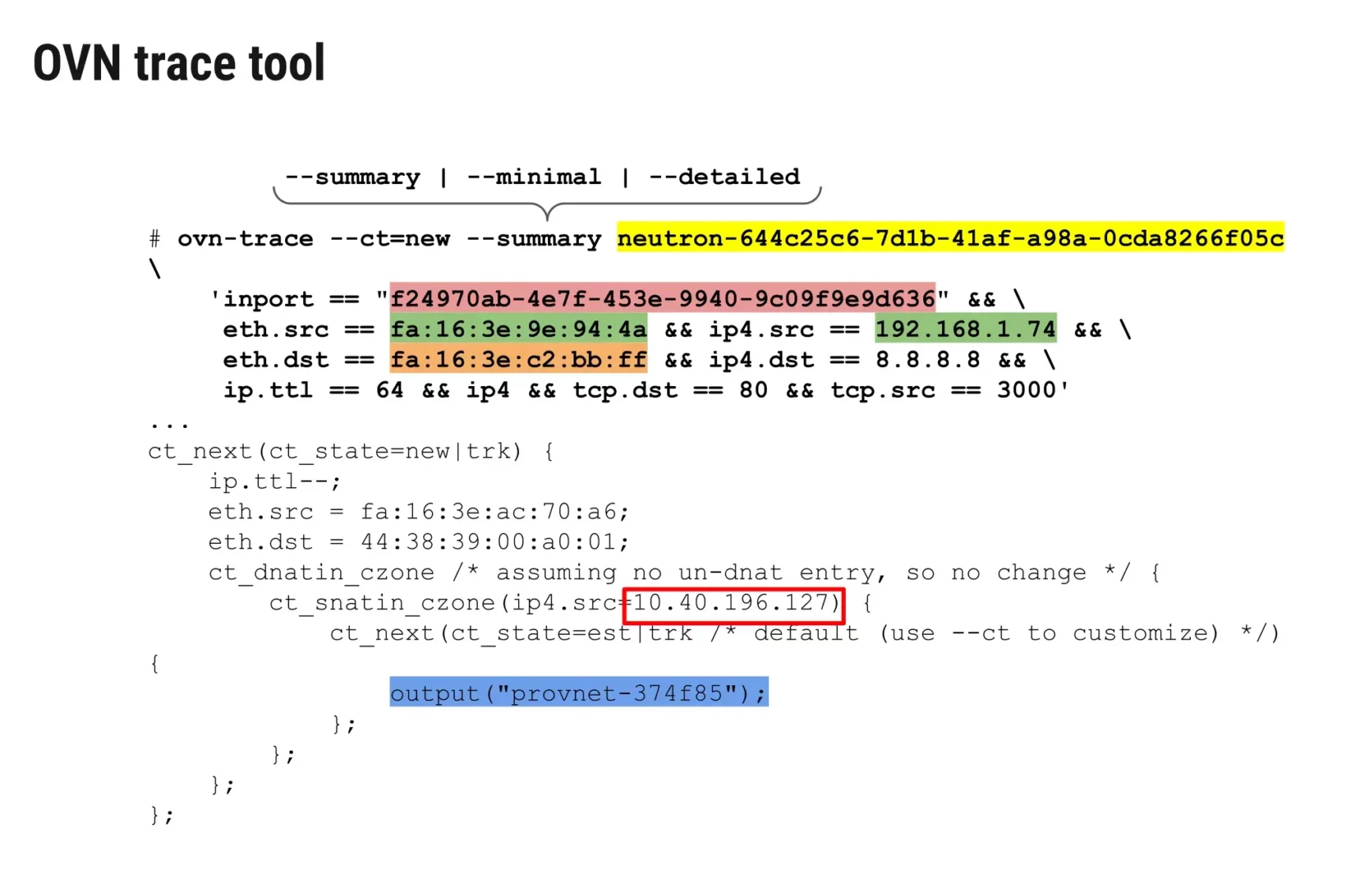
The trace output shows exactly this:
- TTL is decremented
- MAC addresses are rewritten
- The SNAT transformation occurs
- Packet is output to the public network
This makes it clear where a packet is going, and whether NAT and routing behave as expected.
How to Use It
You can adjust the verbosity using:
--summary
--minimal
--detailed
Example trace command:
ovn-trace --ct=new --summary neutron-644c25c6-7d1b-41af-a98a-0cda8266f05c \
  'inport == "f24970ab-4e7f-453e-9940-9c09f9e9d636" && \
   eth.src == fa:16:3e:9e:94:4a && ip4.src == 192.168.1.74 && \
   eth.dst == fa:16:3e:c2:bb:ff && ip4.dst == 8.8.8.8 && \
   ip.ttl == 64 && ip4 && tcp.dst == 80 && tcp.src == 3000'
Why You Should Use It
Once you do use it, ovn-trace becomes an invaluable tool for seeing exactly how OVN handles packets – especially when debugging NAT, routing, or connectivity issues across private and public networks.
DB sync tool – Verifying and Repairing Neutron/OVN State
The last tool worth highlighting is the Neutron–OVN DB sync utility, originally designed to assist with migrations from the old Neutron ML2/OVS plugin to OVN. While its primary purpose is to take the data from the Neutron database and replay it into OVN during a migration, the tool is still actively maintained and remains extremely useful in day-to-day operations.
Even if you’re not migrating anymore, this script provides two powerful modes:
1. log Mode – Detect Inconsistencies
Running the sync tool in log mode checks for inconsistencies or desynchronization between the Neutron database and the OVN Northbound database.
This is helpful when you suspect that:
- A port exists in Neutron but not in OVN
- A network or router wasn’t fully created
- Some OVN entries are out of sync due to service interruptions or bugs
Example:
neutron-ovn-db-sync-util --debug \
  --config-file /etc/neutron/neutron.conf \
  --config-file /etc/neutron/plugins/ml2/ml2_conf.ini \
  --ovn-neutron_sync_mode log
The tool will not modify anything – it only reports what’s out of sync.
2. repair Mode – Automatically Fix Issues
The repair mode goes one step further: it attempts to automatically fix inconsistencies by recreating missing entries in OVN.
This is especially useful when:
- You restart services after downtime
- OVN missed a notification from Neutron
- You find mismatches in state and want to avoid manual fixes
Example:
  neutron-ovn-db-sync-util --debug \
  --config-file /etc/neutron/neutron.conf \
  --config-file /etc/neutron/plugins/ml2/ml2_conf.ini \
  --ovn-neutron_sync_mode repair
The tool will inspect both databases and restore missing objects where possible.
Why This Tool Matters
Even though it originated as a migration helper, it has become an essential operational tool for ensuring Neutron and OVN remain in sync – especially in large or busy environments where eventual consistency sometimes needs a push.
Useful links
- https://www.youtube.com/watch?v=fZmMaQf36fg
- https://access.redhat.com/solutions/4073951
- https://gist.github.com/velp/21f05ed57400b077efd4cefb171e5d27
- https://docs.openstack.org/neutron/2024.2/ovn/gaps.html
- https://docs.openstack.org/releasenotes/neutron/2024.1.html#relnotes-24-0-0-stable-2024-1-new-features
- https://docs.openstack.org/neutron/latest/admin/ovn/routing.html
- https://rodolfo-alonso.com/ml2-ovn-mechanism-driver-and-the-secret-agents
- https://docs.openstack.org/neutron/latest/admin/ovn/refarch/refarch.html
- https://github.com/openstack/neutron/blob/9ca0e34a5edeb0419d86117dfaabb3f7842bb347/neutron/plugins/ml2/drivers/ovn/mech_driver/mech_driver.py#L1389
- https://lewisdenny.io/tracing_packets_out_an_external_network_with_ovn/
Conclusion
Understanding OVN’s traffic flows and mastering its troubleshooting tools is essential for running a stable and predictable OpenStack environment. As we’ve seen, from chassis duplication issues and MTU fragmentation to floating IP behavior, NAT flows, and device-mapping mismatches, OVN provides powerful capabilities, but it also requires careful alignment of configuration and infrastructure.
Many of these challenges are significantly easier to manage when OVN is used in a clean, consistent, and fully supported architecture.
At Cloudification, this is exactly the approach we take with our private cloud solution c12n.cloud. c12n is using ML2/OVN and relies only on stable, proven OVN features that are production-ready across the OpenStack ecosystem that we test carefully in multiple lab and development environments.
If you’re looking for a modern, vendor-neutral private cloud with a robust and maintainable networking stack powered by OVN, our team is ready to help.


